
Knowledge Base
Configuring Mailgun with GPTWeb
setting up Mailgun as your email provider in GPTWeb is quick and straightforward. GPTWeb supports Bring Your Own Key (BYOK) email configuration, meaning you connect your own Mailgun account for full control over deliverability and sending reputation.
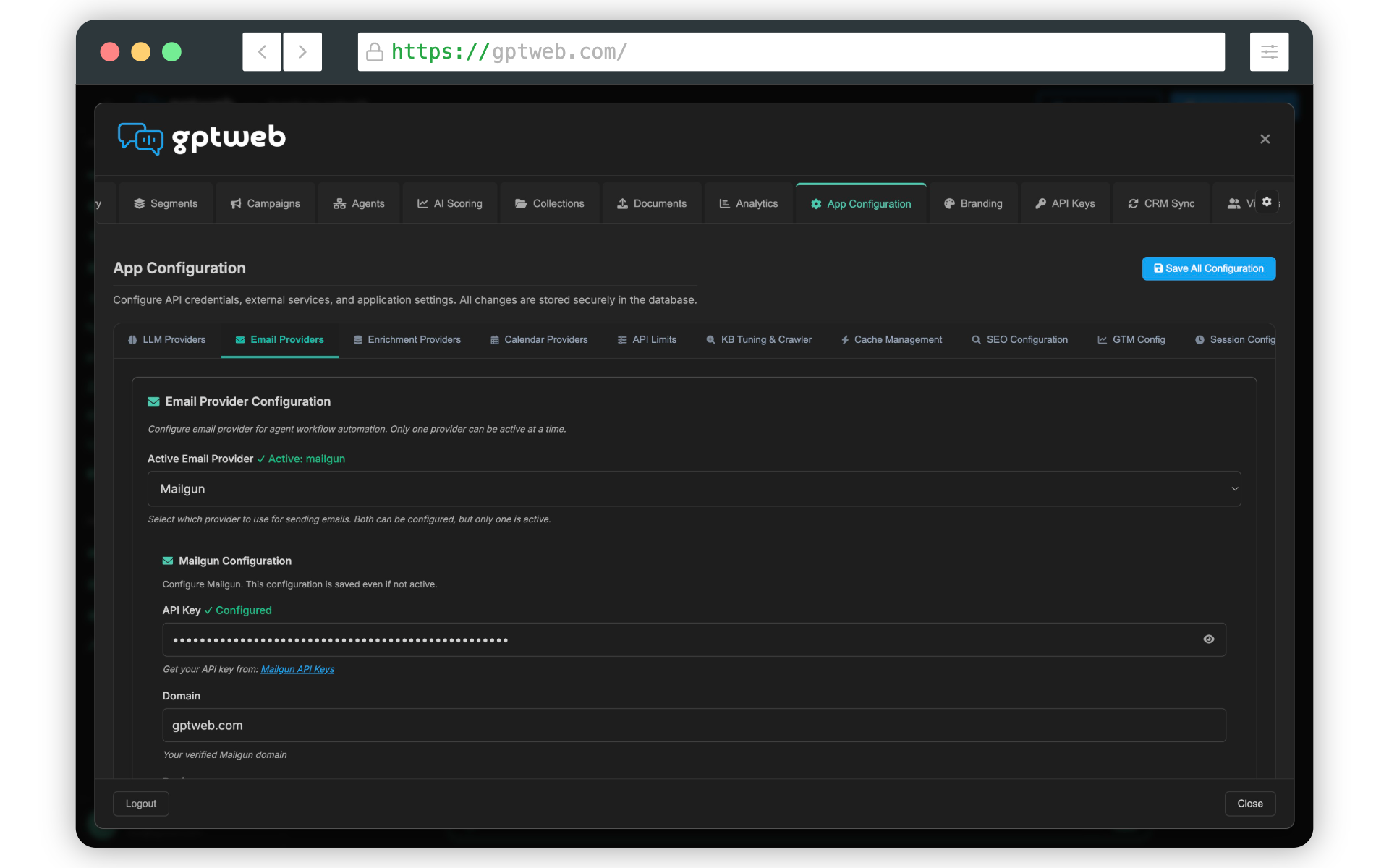
Steps to Configure Mailgun
- Open the Admin Panel (Cmd+Ctrl+A on Mac or Ctrl+Alt+A on Windows/Linux)
- Navigate to Settings → Email Configuration
- Select Mailgun as your email provider
- Enter your Mailgun API Key (found in your Mailgun dashboard under API Keys)
- Enter your Mailgun Domain (e.g., mg.yourdomain.com)
- Select your Mailgun Region — US or EU depending on your account
- Add a From Name and From Email address for outgoing messages
- Click Save & Test to verify the connection is working
~5 Minutes
Setup Time
US & EU
Regions Supported
Transactional & Bulk
Email Types
Yes (BYOK)
API Key Required
Pro Tips for Mailgun Setup: - Make sure your Mailgun sending domain has DNS records verified (SPF, DKIM, and MX) before connecting to GPTWeb for best deliverability
- Use a subdomain like
mg.yourdomain.comrather than your root domain - If you're in Europe, be sure to select the EU region in GPTWeb to match your Mailgun account region
- After saving, send a test email to confirm everything is routing correctly If you encounter any issues during setup, feel free to open a [](gptweb://modal/contact) and the team will assist you directly.
GPTWeb is the future of engagement, websites, and marketing automation combined — built for the AI era, built for now.