
Knowledge Base
Getting Started with GPTWeb App Configuration
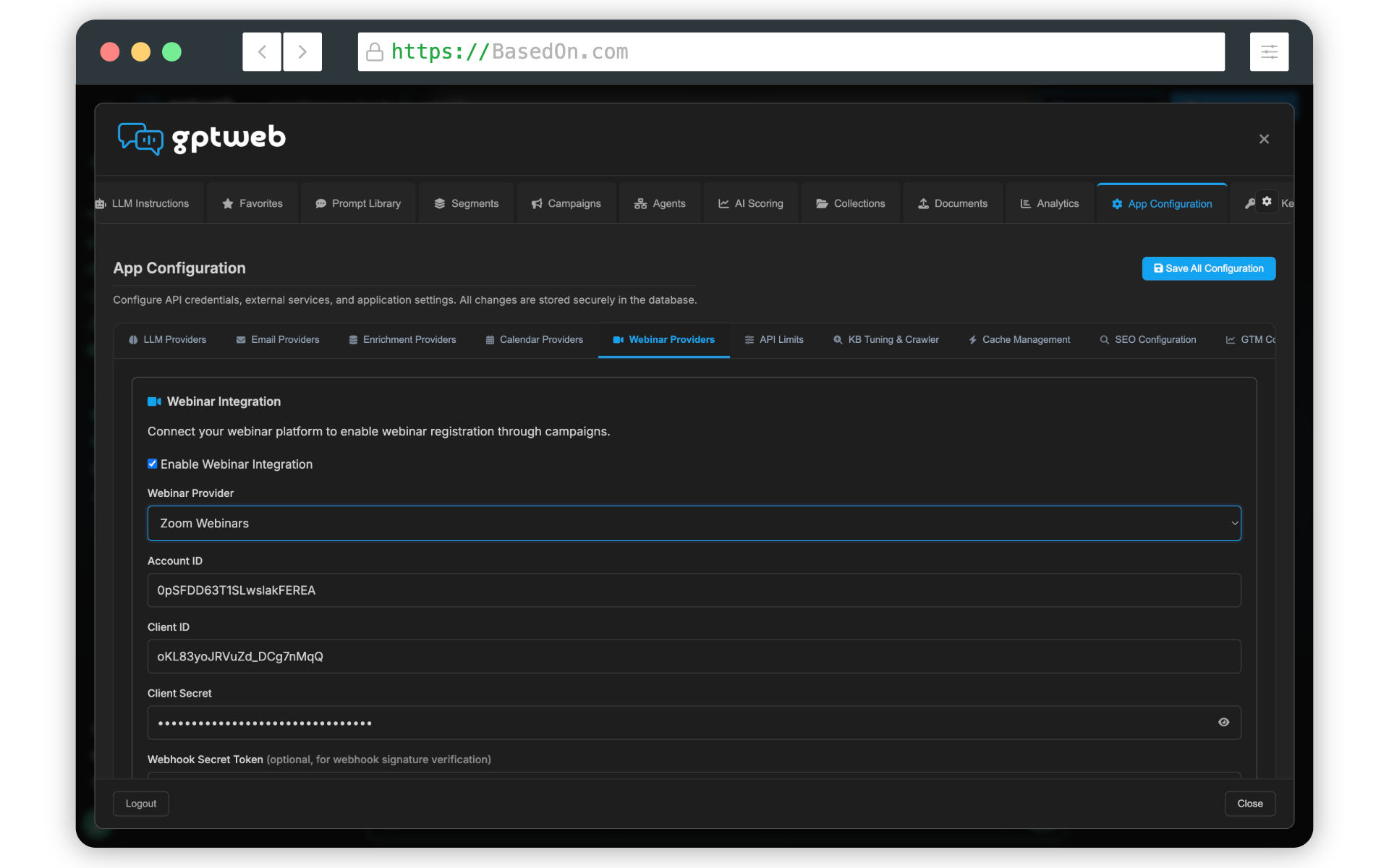
Hello! Getting started with GPTWeb is straightforward. For integrations like Zoom Webinars, here's how to connect your app and get up and running quickly.
Quick Setup Steps
- Name your app (e.g., "GPTWeb Webinar Integration") in your provider's developer portal
- Copy your **Account ID**, **Client ID**, and **Client Secret** from the app credentials page
- Add the required scopes under the **Scopes** tab (see table below)
- Re-activate the app after adding scopes — scope changes auto-deactivate the app
- Paste credentials into GPTWeb: Account ID → `zoomAccountId`, Client ID → `zoomClientId`, Client Secret → `zoomClientSecret`
- Click **Test Connection** to verify before saving
- Click **Save** to persist your configuration
Required Scopes
| Scope | Purpose |
|---|---|
| `webinar:read:list_webinars:admin` | List upcoming webinars |
| `webinar:read:webinar:admin` | Read webinar details and occurrences |
| `webinar:read:list_registrants:admin` | Check existing registrants (dedup) |
| `webinar:write:registrant:admin` | Register attendees |
7
Setup Steps
4
Required Scopes
~5 min
Time to Connect
Attendance Tracking
Optional Webhook
Once connected, you can also enable optional webhooks to automatically track attendance — identifying who showed up vs. who was a no-show. Ready to explore more? Check out Getting Started or [](gptweb://modal/trial) to get your GPTWeb environment live today.
GPTWeb is the future of engagement, websites, and marketing automation combined — built for the AI era, built for now.