
Knowledge Base
GPTWeb as a Sidekick: Flexible Deployment Options
Hi, Welcome back! For organizations not ready to commit to a full modern AI web experience, GPTWeb offers powerful sidekick deployment options. You can run GPTWeb alongside your existing website using custom domains, embeds, and flexible layouts—giving visitors conversational access to your knowledge while maintaining your current site.
Custom Domain: The Sidekick Approach
GPTWeb supports custom domains, allowing you to create a branded AI experience on a subdomain like gpt.yourdomain.com or chat.yourdomain.com. This approach lets you: • Keep your existing website intact
• Add AI-powered conversations as a complementary experience
• Maintain brand consistency with your own domain
• Test GPTWeb's capabilities before full migration
• Provide a dedicated space for deeper engagement Custom domains resolve the GPTWeb tenant automatically from the Host header, so visitors simply access your branded URL without seeing GPTWeb in the address bar.
• Add AI-powered conversations as a complementary experience
• Maintain brand consistency with your own domain
• Test GPTWeb's capabilities before full migration
• Provide a dedicated space for deeper engagement Custom domains resolve the GPTWeb tenant automatically from the Host header, so visitors simply access your branded URL without seeing GPTWeb in the address bar.
Setting Up Custom Domains
Custom domain setup is managed through Admin Panel → Branding → Custom Domain: Setup Process:
Enter your desired domain (e.g.,
Add the SSL verification CNAME record to your DNS
Add the domain routing CNAME record
Wait for SSL provisioning (typically 5-60 minutes)
Receive confirmation email when active Domain Limits by Plan:
• Free: 0 domains
• Starter: 1 domain
• Pro: 3 domains
• Enterprise: 10+ domains Your IT team handles the DNS records, and GPTWeb manages SSL certificates automatically. Once active, your custom domain provides a seamless branded experience.
gpt.yourcompany.com)• Free: 0 domains
• Starter: 1 domain
• Pro: 3 domains
• Enterprise: 10+ domains Your IT team handles the DNS records, and GPTWeb manages SSL certificates automatically. Once active, your custom domain provides a seamless branded experience.
Embed Options: Iframe vs Widget
GPTWeb offers two powerful embedding methods to integrate AI conversations directly into your existing website:
Embedding Comparison
| Feature | Iframe Embed | Widget Embed |
|---|---|---|
| Integration | Inline page section | Floating popup button |
| Visitor Experience | Always visible in page | Opens on demand |
| Layout Control | Uses Iframe-specific layout | Uses Widget-specific layout |
| Best For | Dedicated chat pages, help centers | Sidekick chat on any page |
| Mobile Friendly | Yes | Yes (compact modes) |
| Custom Domain Support | Yes | Yes |
Iframe Embed Implementation
Iframe embeds display GPTWeb inline within your page—perfect for dedicated chat pages or help center integrations.
<!-- Platform URL (includes tenant) -->
<iframe src="https://app.gptweb.com/embed/acme-corp" width="100%" height="600" frameborder="0" style="border: none;">
</iframe> <!-- Custom domain (tenant auto-resolved) -->
<iframe src="https://gpt.yourdomain.com/embed/" width="100%" height="600" frameborder="0" style="border: none;">
</iframe>
<iframe src="https://app.gptweb.com/embed/acme-corp" width="100%" height="600" frameborder="0" style="border: none;">
</iframe> <!-- Custom domain (tenant auto-resolved) -->
<iframe src="https://gpt.yourdomain.com/embed/" width="100%" height="600" frameborder="0" style="border: none;">
</iframe>
Widget Embed Implementation
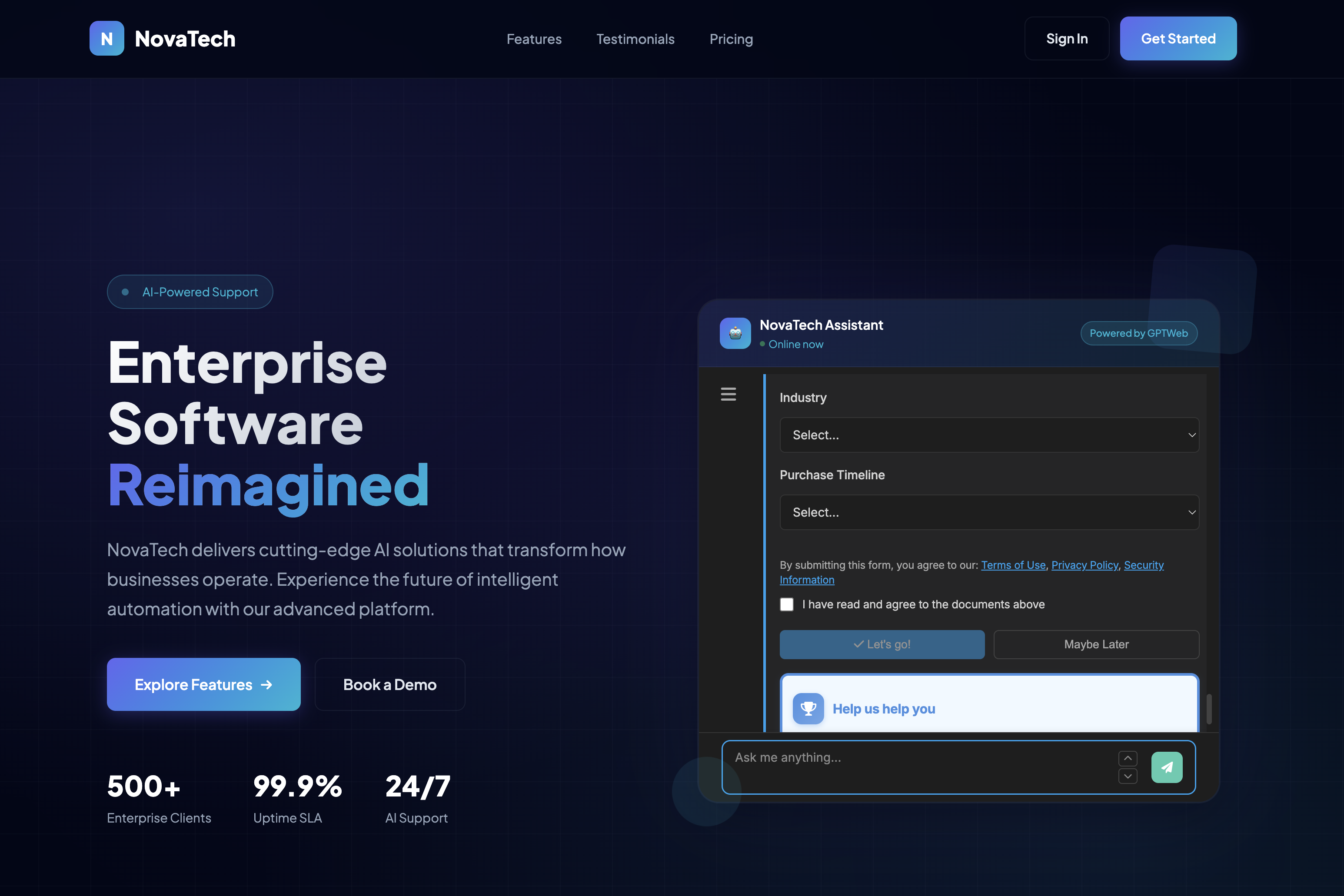
The widget embed adds a floating chat button to your website—visitors can open/close the chat popup without leaving your page. This is the most popular sidekick deployment method.
<!-- Platform URL -->
<script src="https://app.gptweb.com/embed/widget.js" data-tenant="acme-corp">
</script> <!-- Custom domain (no tenant needed) -->
<script src="https://gpt.yourdomain.com/embed/widget.js">
</script> <!-- Place before closing </body> tag -->
<script src="https://app.gptweb.com/embed/widget.js" data-tenant="acme-corp">
</script> <!-- Custom domain (no tenant needed) -->
<script src="https://gpt.yourdomain.com/embed/widget.js">
</script> <!-- Place before closing </body> tag -->
Widget Features
The widget provides a complete chat experience with: • Notification Dot: Red dot appears when new messages arrive while widget is closed
• Position Control: Configure bottom-right, bottom-left positioning
• Responsive Design: Adapts to mobile, tablet, desktop
• Session Persistence: Chat history maintained across page navigation
• Custom Launcher: Fully brandable button with your colors and logo Programmatic Control:
• Position Control: Configure bottom-right, bottom-left positioning
• Responsive Design: Adapts to mobile, tablet, desktop
• Session Persistence: Chat history maintained across page navigation
• Custom Launcher: Fully brandable button with your colors and logo Programmatic Control:
// Open widget programmatically
window.GPTWebWidget?.open(); // Close widget
window.GPTWebWidget?.close(); // Toggle widget
window.GPTWebWidget?.toggle(); // Check if widget is open
const isOpen = window.GPTWebWidget?.isOpen(); // Listen for widget events
window.addEventListener('gptweb:widget:open', () => { console.log('Chat opened');
}); window.addEventListener('gptweb:widget:close', () => { console.log('Chat closed');
});
window.GPTWebWidget?.open(); // Close widget
window.GPTWebWidget?.close(); // Toggle widget
window.GPTWebWidget?.toggle(); // Check if widget is open
const isOpen = window.GPTWebWidget?.isOpen(); // Listen for widget events
window.addEventListener('gptweb:widget:open', () => { console.log('Chat opened');
}); window.addEventListener('gptweb:widget:close', () => { console.log('Chat closed');
});
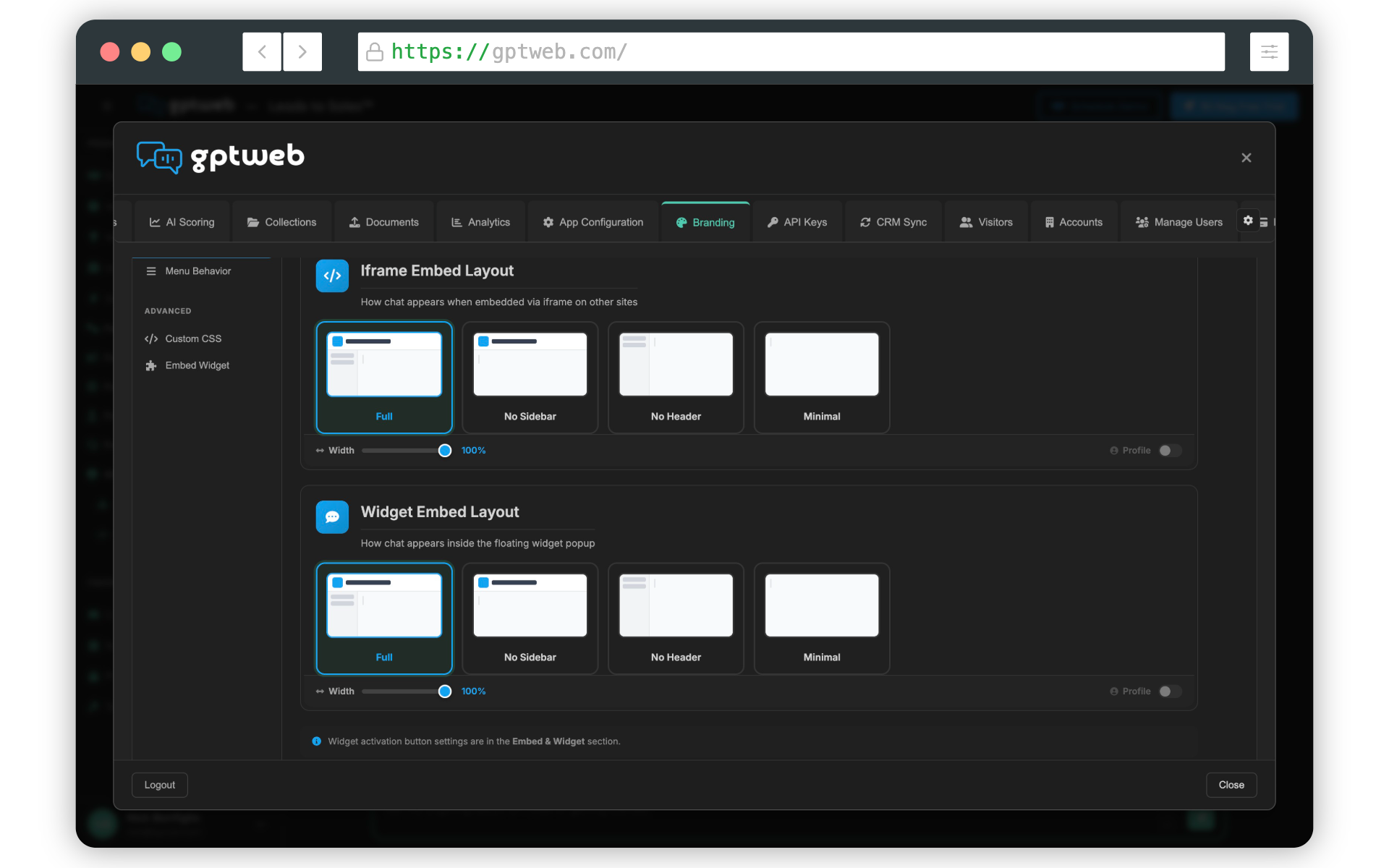
Layout Presets: Context-Aware Design
GPTWeb provides four layout presets, each optimized for different contexts., you can configure separate layouts for Standard (direct browser access), Iframe embeds, and Widget popup—ensuring the best experience in each context.
Layout Preset Options
| Layout | Header Bar | Sidebar | Profile | Best For |
|---|---|---|---|---|
| Full | Yes | Yes | In sidebar | Desktop, full-featured experience |
| No Header | No | Yes | In sidebar | Embeds where you provide header |
| No Sidebar | Yes | No | Floating | Simple chat, landing pages |
| Minimal | No | No | Floating (optional) | Widgets, mobile-first, embeds |
Layout Architecture Flow
Configuring Context-Specific Layouts
Admin Panel → Branding → Customize → Layout Presets: 1. Standard Layout - Direct browser access (e.g., gpt.yourdomain.com)
Iframe Layout - For
Widget Layout - For floating widget popup For each context, you configure:
• Layout preset (Full, No Header, No Sidebar, Minimal)
• Chat width slider (50% to 100%)
• Profile settings (for layouts without sidebar) Example Configuration:
• Standard: Full layout with sidebar for complete experience
• Iframe: No Header layout (your site provides header)
• Widget: Minimal layout for compact popup This context-aware approach ensures GPTWeb looks perfect whether visitors access your custom domain directly, view an embedded iframe, or click your widget button.
<iframe> embeds on your pages• Layout preset (Full, No Header, No Sidebar, Minimal)
• Chat width slider (50% to 100%)
• Profile settings (for layouts without sidebar) Example Configuration:
• Standard: Full layout with sidebar for complete experience
• Iframe: No Header layout (your site provides header)
• Widget: Minimal layout for compact popup This context-aware approach ensures GPTWeb looks perfect whether visitors access your custom domain directly, view an embedded iframe, or click your widget button.
Floating Profile for Compact Layouts
For No Sidebar and Minimal layouts, GPTWeb offers an optional floating profile card that displays visitor information without taking permanent screen space.
Profile Modes
| Mode | Width | Shows | Best For |
|---|---|---|---|
| Compact | 80px | Avatar only | Narrow widgets, space-constrained |
| Expanded | 220px | Avatar + Name + Email | Wider embeds, personalization |
The floating profile can be positioned inline within the chat interface or as a truly floating overlay. Visitors can expand/collapse it as needed, providing personalization without sacrificing chat space.
Custom CSS: Advanced Branding
Beyond Quick Setup and layout presets, GPTWeb supports Custom CSS for complete visual control. This allows you to match your exact brand guidelines, add unique styling, or implement special design requirements.
Widget Launcher Styling Example
/ Custom launcher button gradient /
#gptweb-launcher.gptweb-launcher-btn { background: linear-gradient(135deg, #667eea, #764ba2)!important; box-shadow: 0 4px 20px rgba(102, 126, 234, 0.4)!important;
} #gptweb-launcher.gptweb-launcher-btn:hover { transform: scale(1.1)!important;
} / Custom notification dot /
#gptweb-notification-dot { background: #ff4444!important; width: 16px!important; height: 16px!important;
}
#gptweb-launcher.gptweb-launcher-btn { background: linear-gradient(135deg, #667eea, #764ba2)!important; box-shadow: 0 4px 20px rgba(102, 126, 234, 0.4)!important;
} #gptweb-launcher.gptweb-launcher-btn:hover { transform: scale(1.1)!important;
} / Custom notification dot /
#gptweb-notification-dot { background: #ff4444!important; width: 16px!important; height: 16px!important;
}
Iframe Border Styling Example
/ Add border and shadow to iframe embeds /.gptweb-embed iframe { border: 2px solid var(--brand-primary, #11a3f0); border-radius: 16px; box-shadow: 0 8px 32px rgba(0, 0, 0, 0.12);
}
}
Widget Position Offset Example
/ Adjust widget position from screen edge /
#gptweb-widget-container { --gptweb-offset-bottom: 30px; --gptweb-offset-right: 30px;
}
#gptweb-widget-container { --gptweb-offset-bottom: 30px; --gptweb-offset-right: 30px;
}
Hide Widget on Specific Pages
/ Hide widget on checkout/payment pages /
if (window.location.pathname.includes('/checkout')) { document.getElementById('gptweb-widget-container')?.remove();
}
if (window.location.pathname.includes('/checkout')) { document.getElementById('gptweb-widget-container')?.remove();
}
Custom CSS Best Practices
Brand Consistency:
• Use your brand's primary color for main UI elements
• Apply complementary colors for accents and actions
• Maintain sufficient contrast for accessibility Performance:
• Keep custom CSS minimal and focused
• Avoid overly complex selectors
• Use Quick Setup for automatic optimization first Accessibility:
• Ensure text contrast ratios meet WCAG standards
• Test both light and dark themes
• Verify mobile responsiveness Testing:
• Hard refresh browser after CSS changes (Cmd+Shift+R or Ctrl+Shift+R)
• Clear browser cache if styles don't apply
• Check browser console for CSS errors
• Use your brand's primary color for main UI elements
• Apply complementary colors for accents and actions
• Maintain sufficient contrast for accessibility Performance:
• Keep custom CSS minimal and focused
• Avoid overly complex selectors
• Use Quick Setup for automatic optimization first Accessibility:
• Ensure text contrast ratios meet WCAG standards
• Test both light and dark themes
• Verify mobile responsiveness Testing:
• Hard refresh browser after CSS changes (Cmd+Shift+R or Ctrl+Shift+R)
• Clear browser cache if styles don't apply
• Check browser console for CSS errors
Sidekick Deployment Architecture
Security and Performance
Cross-Origin Security:
GPTWeb embeds enforce strict origin validation to prevent cross-origin attacks. Messages are only accepted from configured GPTWeb domains or your custom domains. Session Management:
• Chat history persists across page navigation
• Visitor identity maintained throughout session
• Secure communication between widget and iframe Performance Optimization:
• Lazy loading of widget resources
• Minimal impact on page load times
• CDN-delivered assets for fast global access
• Efficient iframe rendering
GPTWeb embeds enforce strict origin validation to prevent cross-origin attacks. Messages are only accepted from configured GPTWeb domains or your custom domains. Session Management:
• Chat history persists across page navigation
• Visitor identity maintained throughout session
• Secure communication between widget and iframe Performance Optimization:
• Lazy loading of widget resources
• Minimal impact on page load times
• CDN-delivered assets for fast global access
• Efficient iframe rendering
Why the Sidekick Approach Works
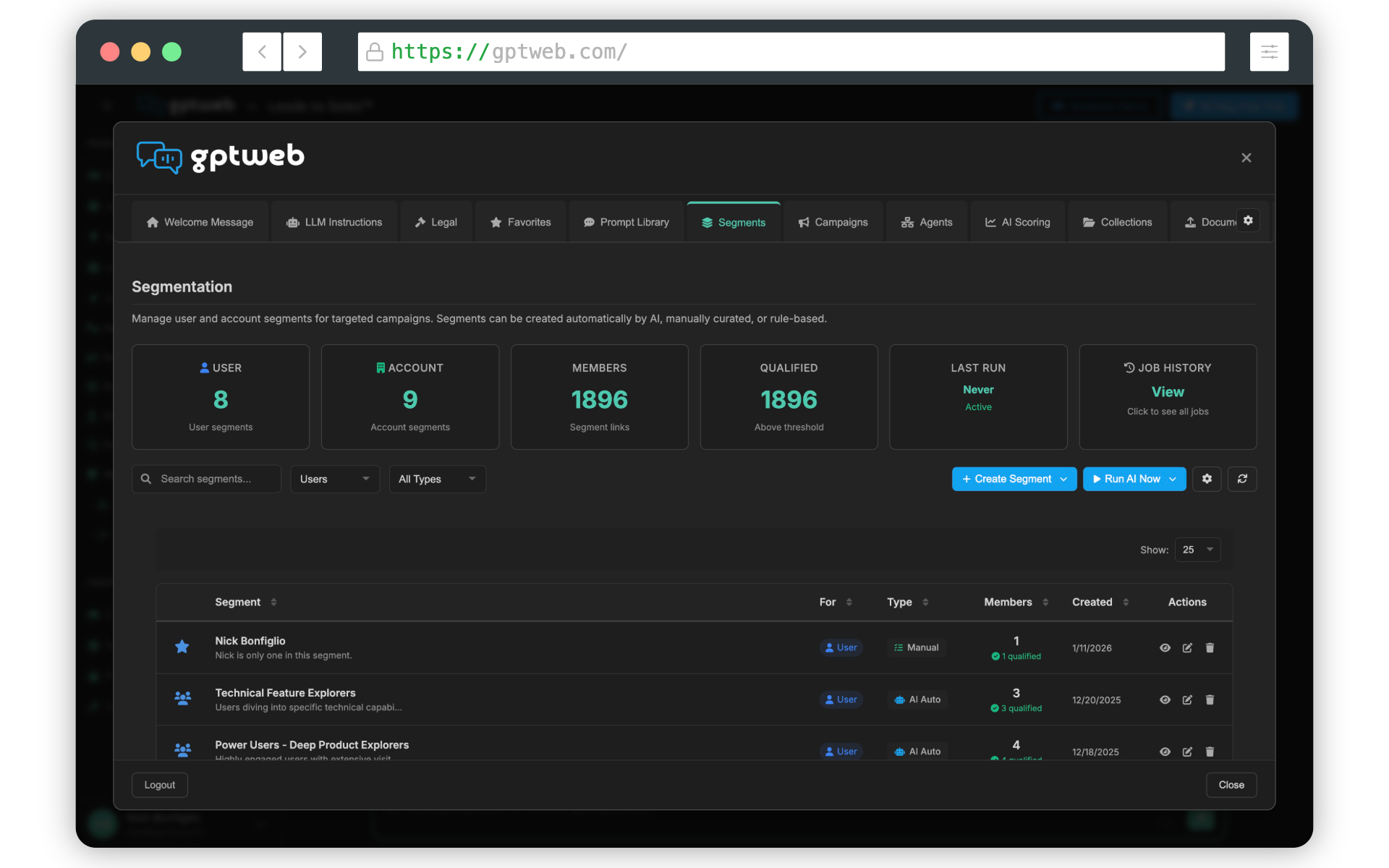
the sidekick deployment model offers organizations a low-risk path to AI-powered engagement: Gradual Adoption:
• Test GPTWeb without replacing existing infrastructure
• Prove ROI before full migration
• Train your team on AI web capabilities Complementary Experience:
• Keep your existing website for branding and content
• Add AI conversations for deeper engagement
• Provide both browsing and asking pathways Flexibility:
• Choose custom domain, iframe, or widget based on needs
• Configure layouts per context for optimal UX
• Customize styling to match your brand perfectly Discussion Qualified Leads:
• Capture intent from conversations, not just form fills
• Score engagement quality with AI
• Sync qualified leads to your CRM automatically The sidekick model lets you offer visitors the choice: browse your traditional site or have a conversation with AI that understands your business. Many find the conversation more valuable—and that's when you know you're ready for the full Modern AI Web experience.
• Test GPTWeb without replacing existing infrastructure
• Prove ROI before full migration
• Train your team on AI web capabilities Complementary Experience:
• Keep your existing website for branding and content
• Add AI conversations for deeper engagement
• Provide both browsing and asking pathways Flexibility:
• Choose custom domain, iframe, or widget based on needs
• Configure layouts per context for optimal UX
• Customize styling to match your brand perfectly Discussion Qualified Leads:
• Capture intent from conversations, not just form fills
• Score engagement quality with AI
• Sync qualified leads to your CRM automatically The sidekick model lets you offer visitors the choice: browse your traditional site or have a conversation with AI that understands your business. Many find the conversation more valuable—and that's when you know you're ready for the full Modern AI Web experience.
GPTWeb is the future of engagement, websites, and marketing automation combined—built for the AI era, built for now. Whether you deploy as a sidekick with custom domains and embeds, or go all-in with a full AI web experience, GPTWeb adapts to your organization's readiness while delivering Discussion Qualified Leads from day one.