
Knowledge Base
GPTWeb Embed: Options, Setup & Configuration
GPTWeb is built to live wherever your visitors are — not just on your standalone GPTWeb site. The embed system lets you drop your AI conversation experience directly into any existing website, landing page, or web app as either a full iframe or a floating widget sidekick. This means organizations like your organization can layer GPTWeb's intelligence on top of existing web properties without rebuilding anything — it's additive, fast, and powerful.
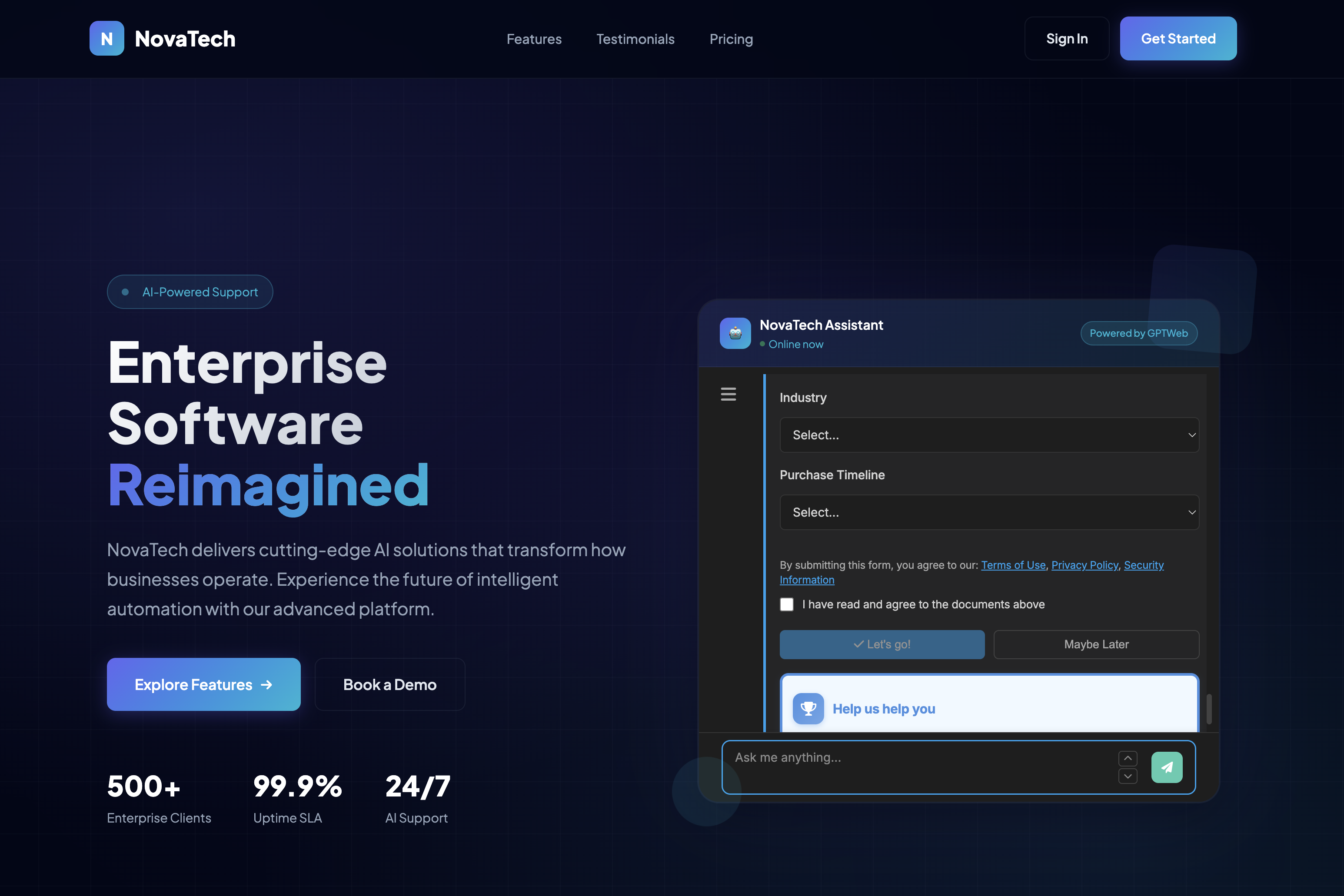
Embed Options Overview
| Embed Type | What It Does | Best For | Visitor Experience |
|---|---|---|---|
| iFrame Embed | Renders your full GPTWeb site inside any webpage as an inline embedded panel | Dedicated pages, resource hubs, product pages, documentation sections | Full GPTWeb conversational UI inside the host page — no redirect |
| Widget / Sidekick | Floating button that opens a chat panel overlay from the corner of any webpage | Any page where you want ambient conversational availability | Click the button, chat panel expands — non-intrusive and persistent |
| Standalone Site | Your hosted GPTWeb URL at app.gptweb.com/site/YOUR-SLUG | Direct campaign links, primary website replacement, partner portals | Full-page native GPTWeb experience — no host site needed |
Where to Configure Embed Settings
| Setting | Location in Admin Panel | What You Configure |
|---|---|---|
| Enable / Disable Embed | Branding → Customize → Embed & Widget | Toggle embed availability on or off for your site |
| Widget Button Appearance | Branding → Customize → Embed & Widget | Button color, icon, position (bottom-left or bottom-right), size |
| Allowed Domains | Branding → Customize → Embed & Widget | Whitelist domains that are permitted to embed your GPTWeb site (security control) |
| iFrame Snippet | Branding → Customize → Embed & Widget | Copy-paste ready HTML snippet for dropping into any webpage |
| Widget Script Snippet | Branding → Customize → Embed & Widget | Copy-paste JavaScript snippet for floating widget deployment |
| Custom CSS | Branding → Customize → Custom CSS | Override styling of the embed UI to match your host site branding |
Step-by-Step: Setting Up Your Embed
| # | Step | Why | Where |
|---|---|---|---|
| 1 | Open Admin Panel with Cmd+Ctrl+A (Mac) or Ctrl+Alt+A (Windows) | All embed configuration lives inside the admin panel | Keyboard shortcut on your GPTWeb site |
| 2 | Navigate to Branding tab | Branding houses all visual and embed customization settings | Admin Panel → Branding tab |
| 3 | Click the Customize sub-tab | Sub-tab organizes branding into sections: colors, CSS, embed | Admin Panel → Branding → Customize sub-tab |
| 4 | Select Embed & Widget from the left sidebar | This is the dedicated embed configuration panel | Branding → Customize → Embed & Widget (left sidebar) |
| 5 | Toggle Embed to Enabled | Nothing works until embed is explicitly enabled | Embed & Widget → Enable toggle |
| 6 | Choose your embed type: iFrame or Widget | Determines how the AI experience surfaces on your host site | Embed & Widget → Embed Type selector |
| 7 | Configure widget appearance (if using widget) | Set button color, position, and icon to match your brand | Embed & Widget → Widget appearance settings |
| 8 | Add allowed domains (recommended for security) | Prevents your embed from being used on unauthorized sites | Embed & Widget → Allowed Domains field |
| 9 | Copy the generated code snippet (iFrame HTML or Widget JS) | This is the exact code you paste into your target webpage | Embed & Widget → Copy Snippet button |
| 10 | Paste snippet into your target webpage HTML | Deploys GPTWeb on your host site — no rebuild required | Your website HTML, CMS, or tag manager |
| 11 | Test in browser — clear cache if embed preview is not working | Verifies the embed loads correctly and allowed domains are set | Your live host website |
Key Technical Notes
| Topic | Detail |
|---|---|
| iFrame src URL | Points to your GPTWeb site: https://app.gptweb.com/site/YOUR-SLUG |
| Framer Compatibility | Yes — use window.parent.postMessage to trigger GPTWeb actions from Framer buttons |
| Action Links in Embed | gptweb:// action links work inside embeds (e.g., [{{action.demo_label}}](gptweb://modal/demo)) |
| Domain Whitelisting | If domains are configured, only listed domains can render the embed — blank = unrestricted |
| Cache/Preview Issues | If embed preview is not loading, clear browser cache and verify domain is in allowed list |
| Styling the Embed | Custom CSS available under Branding → Customize → Custom CSS for visual overrides |
2 (iFrame + Widget)
Embed Types Available
~10 Min
Setup Time
Copy & Paste Only
Code Required
Any HTML Host
CMS Compatibility
For deeper context on how the embed fits into a full GPTWeb deployment, explore Embedding & Sidekick details, Getting Started for setup, and Live Visitor View to see how embedded visitor activity is tracked in real time. The embed system is a core part of what makes GPTWeb the future of engagement — websites and marketing automation combined, built for the AI era, built for now.