
Knowledge Base
GPTWeb: Full Implementation Guide — Start to Finish
setting up GPTWeb is genuinely one of the most refreshing platform experiences you'll have — and that's not marketing fluff. Unlike traditional website platforms that bury you in plugins, templates, and endless configuration menus, GPTWeb is built around a single elegant idea: let visitors just ask for what they want. From the moment you sign up, you're not building pages — you're building conversations. And that mental shift makes every setup step feel purposeful rather than tedious. Within an hour, you'll have a live AI-powered site that knows your content, scores your visitors, and takes autonomous action. That's not a weekend project — that's a lunch break.
What makes it genuinely fun is watching the pieces click together. You upload a document, ask a question, and your AI answers it — intelligently, contextually, without you writing a single line of logic. You create an agent, set an NLP trigger, and suddenly your site is autonomously emailing qualified visitors before you've even finished your coffee. The platform rewards curiosity: every tab you explore unlocks a new capability. Below is your complete, step-by-step implementation table — every step, why it matters, and exactly where to find it.
Phase 1: Account Setup
| # | Step | Why | Where |
|---|---|---|---|
| 1 | Sign up for free trial | Creates your GPTWeb account and live site instantly — no credit card required | gptweb.com → Start Free Trial |
| 2 | Complete signup form (First Name, Last Name, Email, Company, Phone) | Your email becomes your admin login — get this right from the start | Trial signup form on gptweb.com |
| 3 | Verify email and set password (10+ characters recommended) | Secures your account with a strong credential from day one | Email inbox → Set Your Password link |
| 4 | Access your live GPTWeb site | Confirms your public-facing conversational site is live and accessible immediately | gptweb.com/site/your-company-slug |
| 5 | Open Admin Panel | The central hub for all 20 configuration tabs — this is where everything happens | Cmd+Ctrl+A (Mac) or Ctrl+Alt+A (Windows/Linux) |
Phase 2: Core Configuration
| # | Step | Why | Where |
|---|---|---|---|
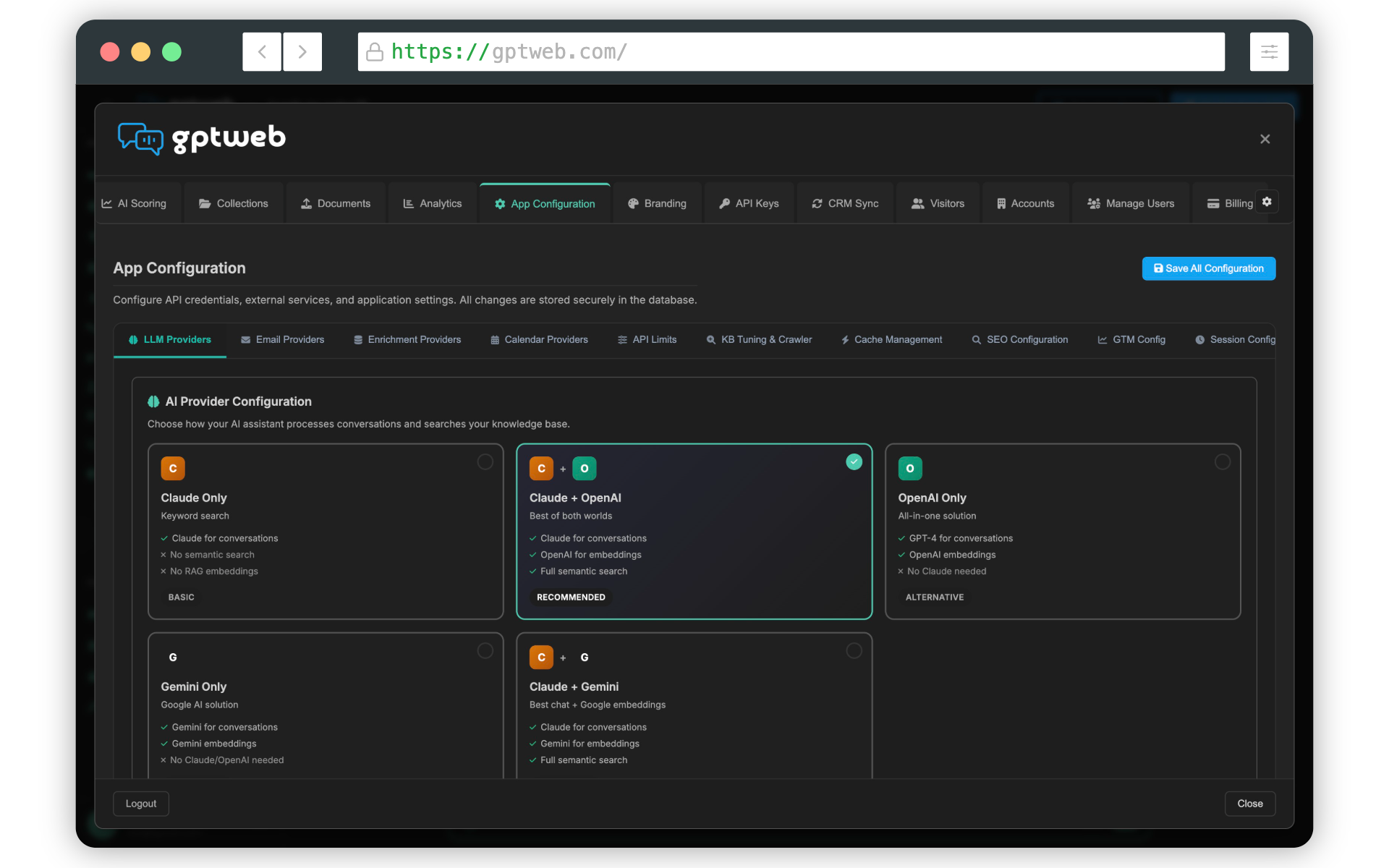
| 6 | Configure LLM API Keys (OpenAI, Anthropic Claude, or Google Gemini) | Without API keys GPTWeb cannot generate any AI responses — this is the engine | Admin Panel → App Configuration tab → API Keys |
| 7 | Set up email provider (SendGrid or Mailgun) | Powers all transactional and bulk agentic email delivery from conversations | Admin Panel → App Configuration tab → Email Settings |
| 8 | Configure Branding — logo, 6-color Quick Setup, fonts, dark/light theme | The 6-color system auto-generates all UI colors for both themes instantly | Admin Panel → Branding tab |
| 9 | Write your Welcome Message | First impression for every visitor — shapes tone, context, and orientation | Admin Panel → Welcome Message tab |
| 10 | Write LLM Instructions | Defines your AI assistant's persona, behavioral rules, and response boundaries | Admin Panel → LLM Instructions tab |
| 11 | Configure Legal settings | Adds privacy policy and terms of service — required for compliance | Admin Panel → Legal tab |
Phase 3: Knowledge Base & Content (RAG)
| # | Step | Why | Where |
|---|---|---|---|
| 12 | Create a Semantic Collection | Collections organize content for intelligent routing — the description drives semantic accuracy | Admin Panel → Collections tab → Create New Collection |
| 13 | Write a detailed Collection description | Used for semantic routing: the more specific, the more accurate the AI retrieval | Admin Panel → Collections tab → Collection Description field |
| 14 | Upload RAG Documents (PDF, Word, TXT, MD, CSV) | Auto-chunked into ~1500 character segments with vector embeddings for semantic search | Admin Panel → Documents tab → Select Collection → Upload Document |
| 15 | Upload Images for AI reference | Enriches AI responses with visual product and brand assets displayed in-chat | Admin Panel → Documents tab → Images sub-tab |
| 16 | Upload CSV/Excel Chart Data | Enables AI-generated charts and data visualizations directly inside responses | Admin Panel → Documents tab → Chart Data sub-tab |
| 17 | Upload Videos (MP4) | Enables in-chat video playback for demos, tutorials, and product walkthroughs | Admin Panel → Documents tab → Videos sub-tab |
| 18 | Configure RAG Crawler | Auto-imports and continuously keeps your website content indexed without manual uploads | Admin Panel → Collections tab → Crawler Settings |
| 19 | Build Prompt Library and Favorites | Guides visitors with suggested questions and curated quick-access navigation topics | Admin Panel → Prompt Library tab + Favorites tab |
Phase 4: Engagement & Automation
| # | Step | Why | Where |
|---|---|---|---|
| 20 | Define AI Scoring rules | Automatically qualifies and ranks visitors by engagement quality — the engine behind DQL identification | Admin Panel → AI Scoring tab |
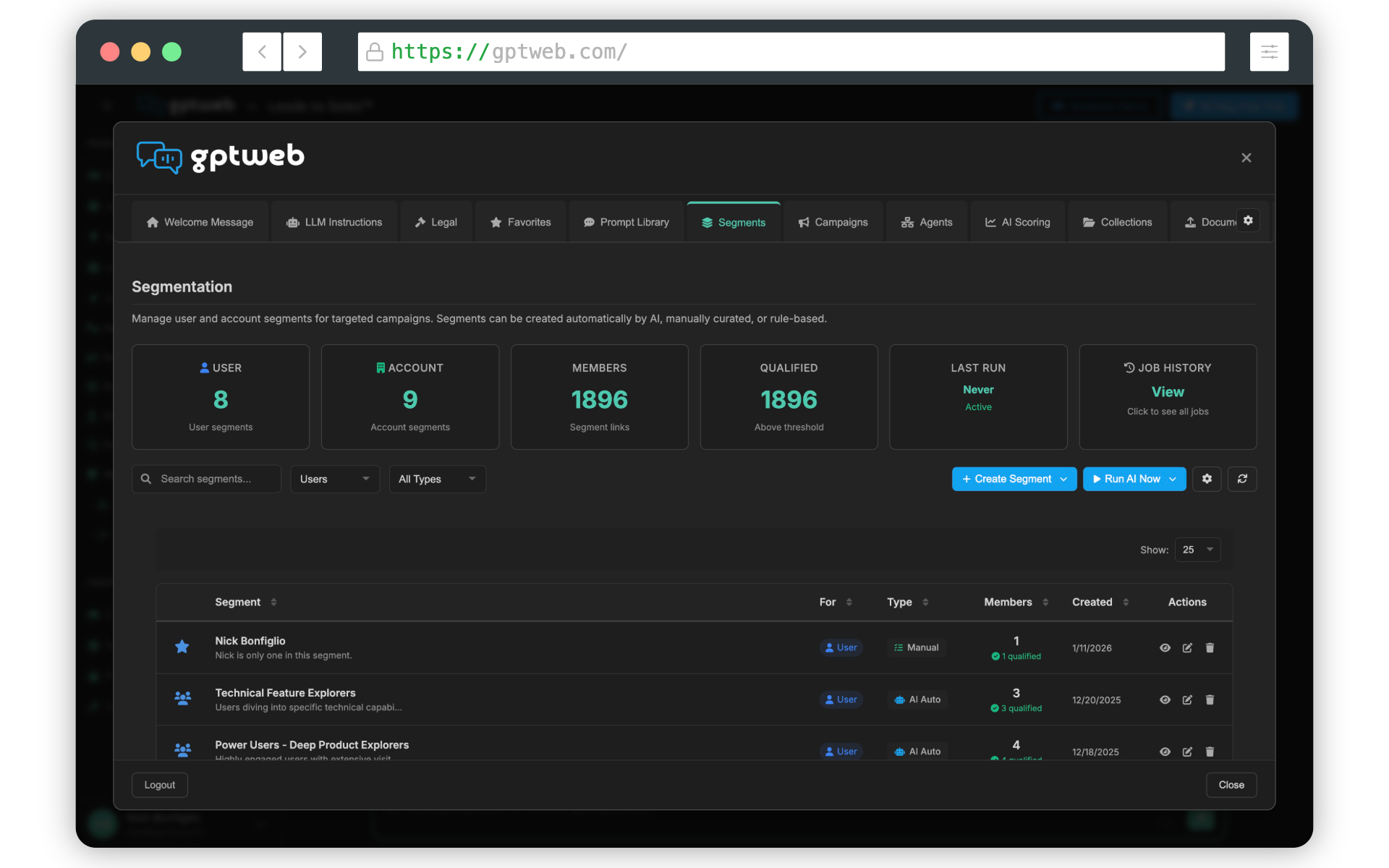
| 21 | Build Segments (conversational intent + static lists) | Groups visitors by real behavior and intent for precise, targeted outreach | Admin Panel → Segments tab |
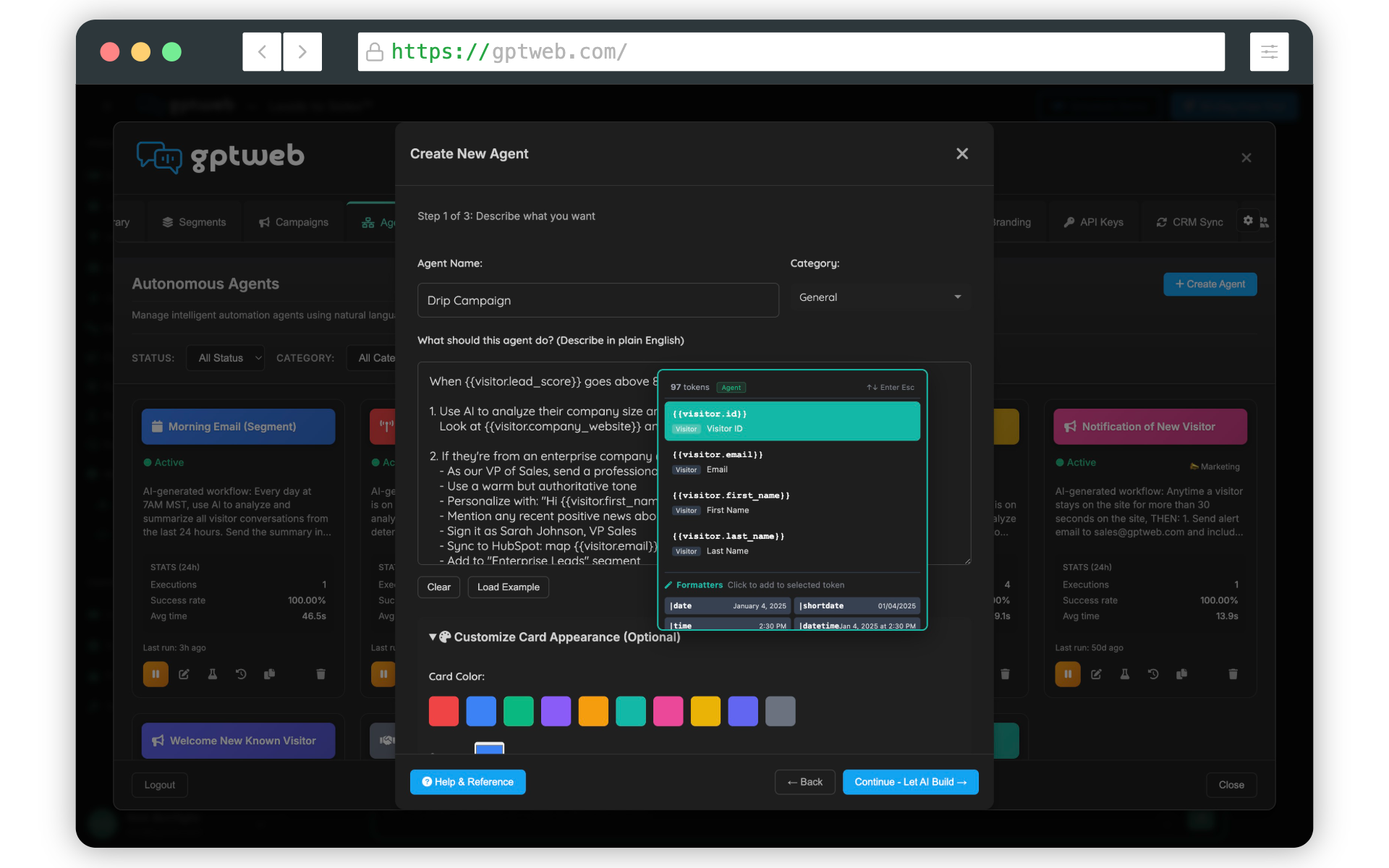
| 22 | Create Agents with NLP triggers and actions | Automates emails, CRM updates, and responses based on what visitors actually say | Admin Panel → Agents tab → Create Agent |
| 23 | Launch Campaigns targeting specific segments | Delivers targeted messages, offers, webinar invites, and CTAs to exactly the right visitors | Admin Panel → Campaigns tab |
| 24 | Configure Agentic Email (transactional and bulk/batch) | Sends automated emails triggered by conversation actions — no manual intervention needed | Admin Panel → Agents tab + Email Configuration |
Phase 5: Integrations & Distribution
| # | Step | Why | Where |
|---|---|---|---|
| 25 | Connect CRM Sync (HubSpot or Salesforce) | Pushes enriched DQL visitor profiles and conversation data directly into your CRM automatically | Admin Panel → CRM Sync tab |
| 26 | Embed GPTWeb Sidekick on your existing website | Adds the full conversational AI experience as an intelligent overlay on your current site | Admin Panel → Embed & Sidekick tab |
| 27 | Configure custom domain (optional) | Gives your GPTWeb site a branded, professional URL that matches your identity | Admin Panel → App Configuration → Domain Settings |
| 28 | Set up Open Graph meta tags | Generates rich social preview cards on LinkedIn, Slack, Twitter/X, Facebook, and Discord | Admin Panel → SEO / Meta tab → OG Settings |
| 29 | Enable Conversational SEO™ | Auto-generates llms.txt so ChatGPT, Claude, and Perplexity can discover and index your content | Admin Panel → SEO tab → Conversational SEO™ |
Phase 6: Optimize & Scale
| # | Step | Why | Where |
|---|---|---|---|
| 30 | Review Analytics dashboard | Tracks visitor engagement, DQL conversions, campaign performance, and token usage in one view | Admin Panel → Analytics tab |
| 31 | Monitor Live Visitor View | Watch real-time visitor prompts and conversational behavior as it unfolds | Admin Panel → Live Visitor View tab |
| 32 | Refine AI Scoring thresholds | Improves DQL quality and accuracy as real visitor engagement data accumulates over time | Admin Panel → AI Scoring tab → Threshold Settings |
| 33 | Tune Segments and Campaigns | Optimizes targeting precision based on actual conversion and engagement performance data | Admin Panel → Segments tab + Campaigns tab |
| 34 | Manage Users and access controls | Adds team members and assigns appropriate admin access levels across {{visitor.company}} | Admin Panel → Manage Users tab |
| 35 | Review Billing and upgrade plan | Ensures token limits, visitor volumes, and crawled page allocations keep pace with your growth | Admin Panel → Billing tab |
35
Total Steps to Full Implementation
< 30 Min
Est. Time to First Live AI Response
20
Admin Panel Tabs
3
LLM Providers Supported
Ready to go deeper on any phase? Explore Getting Started, Knowledge Base (RAG), CRM Sync, AI Scoring, Agentic Workflow, or What are DQLs™? for detailed guidance on each capability. Questions? Reach us at sales@gptweb.com. GPTWeb is the future of engagement: websites and marketing automation combined, built for the AI era, built for now.