
Knowledge Base
Understanding Segments in GPTWeb
Hello! Segments are dynamic groups of visitors based on behavior, attributes, or AI analysis. Unlike static lists, segments automatically update as visitors meet or no longer meet criteria. Let me walk you through everything you need to know about GPTWeb's powerful segmentation capabilities.
Segment Types Overview
| Type | Icon | How It Works | Best For |
|---|---|---|---|
| AI Automatic | 🤖 | AI categorizes visitors automatically based on conversation analysis | Hands-off segmentation that scales |
| AI Manual | 🧠 | AI suggests visitors, you approve/reject each one | Controlled AI assistance |
| Manual List | ✅ | You hand-pick specific visitors by search | VIP accounts, specific campaigns |
| Rule-Based | ⚙️ | Define conditions (field = value, score > X) | Precise criteria-based grouping |
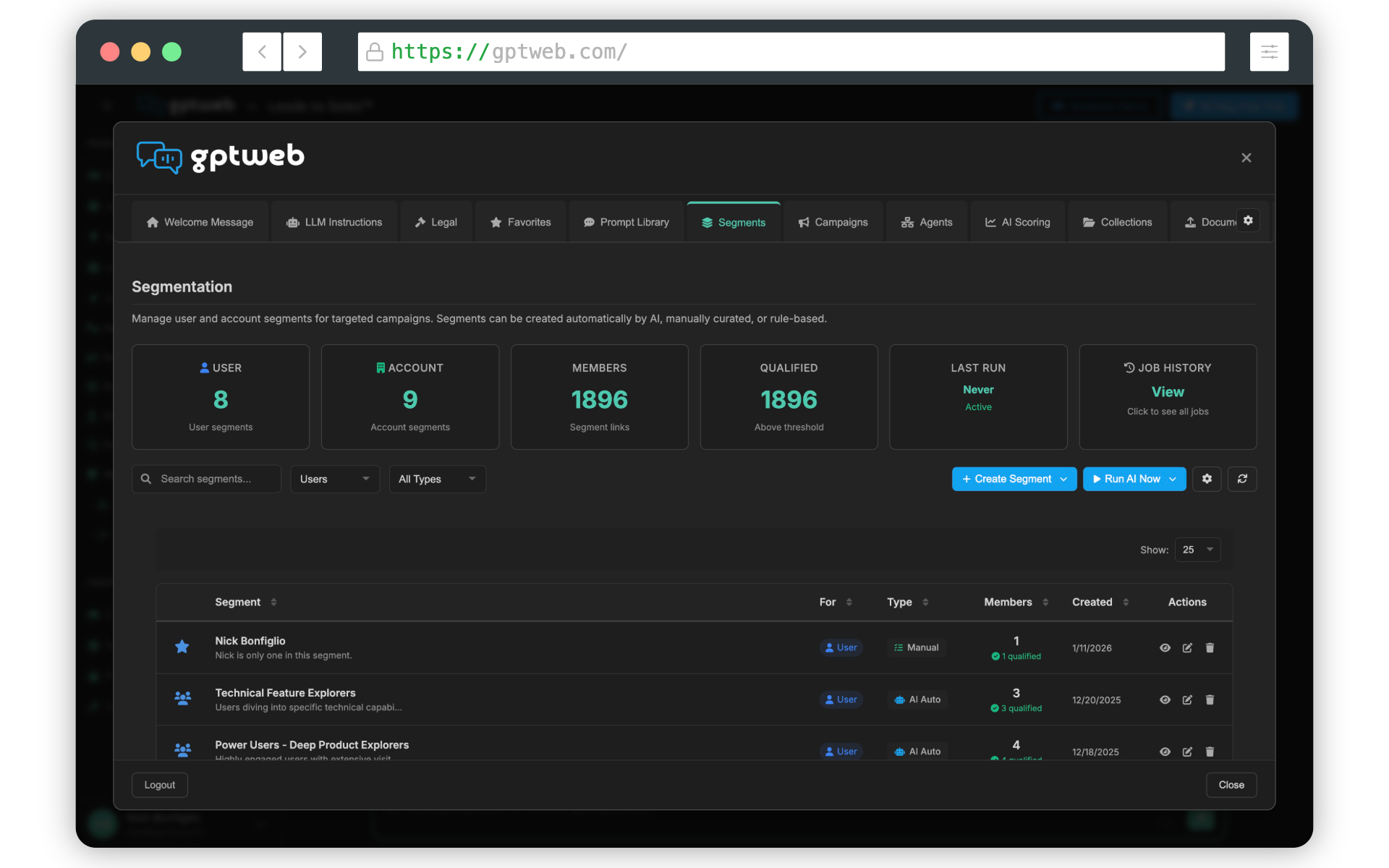
Segments Dashboard Metrics
Active segment count
Total Segments
Total user-segment memberships
Members
Members with AI score above threshold
Qualified
When AI segmentation last executed
Last Run
Creating an AI Automatic Segment
AI Automatic segments let AI analyze conversations and automatically assign visitors based on conversational intent.
- Go to Segments tab and click Create Segment → AI Automatic
- Enter Segment Name (e.g., 'Enterprise Decision Makers')
- Add Description explaining what the segment represents
- Pick a Color for visual identification
- Select an Icon (e.g., 👥 Users)
- Click Save Segment
- Click Run AI Now to have AI analyze all visitors and assign them
What happens next: AI reviews each visitor's conversation history, automatically adds matching visitors, and continues to run periodically (configurable). Members are added/removed as their behavior changes.
Creating an AI Manual Segment
AI Manual segments let AI suggest visitors, but you approve each one for greater control.
- Click Create Segment → AI Manual
- Fill in the same form fields as AI Automatic
- Click Save Segment and then Run AI Now
- AI generates suggestions that appear in a review queue
- Click the eye icon (👁) on your segment row to review
- For each suggested visitor, click ✓ to approve or ✗ to reject
- Approved visitors immediately become segment members
Creating a Manual List Segment
Manual List segments let you hand-pick exactly which visitors belong. Perfect for VIP accounts, trade show leads, beta participants, or account-based marketing targets.
- Click Create Segment → Manual List
- Enter segment name, description, color, and icon
- Search for visitors by typing email, company, or name
- Click + Add next to visitors you want to include
- Click × Remove to remove anyone added by mistake
- Click Save Segment
Creating a Rule-Based Segment
Rule-Based segments use conditions and logic to automatically include visitors based on specific criteria.
Example Rule-Based Segments
| Segment Name | Condition |
|---|---|
| Enterprise Accounts | company_size = '1000+' |
| Returning Visitors | visit_count > 3 |
| High Intent | AI Score > 70 AND Visit Count > 5 |
| Anonymous Engaged | Email is empty AND Visit Count > 5 |
| Job Title Match | Job Title contains 'Director' OR Job Title contains 'VP' |
| Tech Companies | industry equals 'Technology' |
| Enterprise Budget | budget_range equals '$100k+' |
Running AI Segmentation
On-Demand:
- Click the Run AI Now button
- AI processes all visitors against AI Automatic and AI Manual segments
- Progress indicator shows completion
- Segments update with new member counts
Scheduled (Automatic):
- Click the gear icon (⚙️) to open Segmentation Config
- Set the run interval (hourly, every 6 hours, daily)
- AI automatically runs on schedule
- View history in Job History card
Segment Actions & Management
| Button | Action |
|---|---|
| 👁 View | See segment details and member list |
| ✏️ Edit | Modify segment settings |
| 🗑 Delete | Remove segment (with confirmation) |
Segment Membership: Visitors are automatically added/removed from segments as they update their profile information, engage in new conversations, have their AI scores recalculated, or meet/fail rule-based conditions.
Using Segments in Campaigns
once you've created segments, you can target them with campaigns. In the campaign Targeting tab, select Specific Segments as your targeting mode, then choose which segments should see the campaign. You can select multiple segments by holding Ctrl (Windows) or Cmd (Mac).
Segment Analytics
Track segment performance in the Analytics section:
| Metric | Description |
|---|---|
| Total Segments | Active segment count |
| Total Memberships | Sum of all segment members |
| Avg Members/Segment | Segment size indicator |
| Growth Rate | New memberships in period |
| Top Segments | Largest by member count |
| Segment Type Distribution | Dynamic vs static breakdown |
Actionable Insight: Segments with 0 members may have overly restrictive rules. Very large segments (80%+ of visitors) may be too broad to be useful. Use weekly reviews to ensure segments remain meaningful.
Custom Fields in Segments
Organizations like your organization can use custom fields in rule-based segment conditions. For example, create segments based on industry, budget range, or product interest using custom fields you've defined in the Field Editor.
GPTWeb is the future of engagement - websites and marketing automation combined, built for the AI era, built for now.