
Knowledge Base
GPTWeb Embed & Sidekick: Options, Setup & Configuration
not every organization is ready to replace their existing website overnight — and GPTWeb was designed with that reality in mind. The sidekick and embed modes exist precisely to meet organizations where they are today, letting teams layer AI-powered conversational engagement on top of existing web infrastructure without disruption. Whether your team runs WordPress, Webflow, Framer, or a fully custom stack, GPTWeb can live alongside it as an intelligent companion — capturing intent, qualifying visitors, and surfacing Discussion Qualified Leads without requiring a full site migration. Embed modes go even further by putting GPTWeb directly inside your existing pages — not as a separate destination, but as an integrated experience visitors encounter in context. A product page can have an embedded AI that answers technical questions. A pricing page can have a widget that qualifies intent. A help center can surface AI answers inline. This flexibility means GPTWeb adds value from day one, regardless of how far along your team is on the AI web journey.
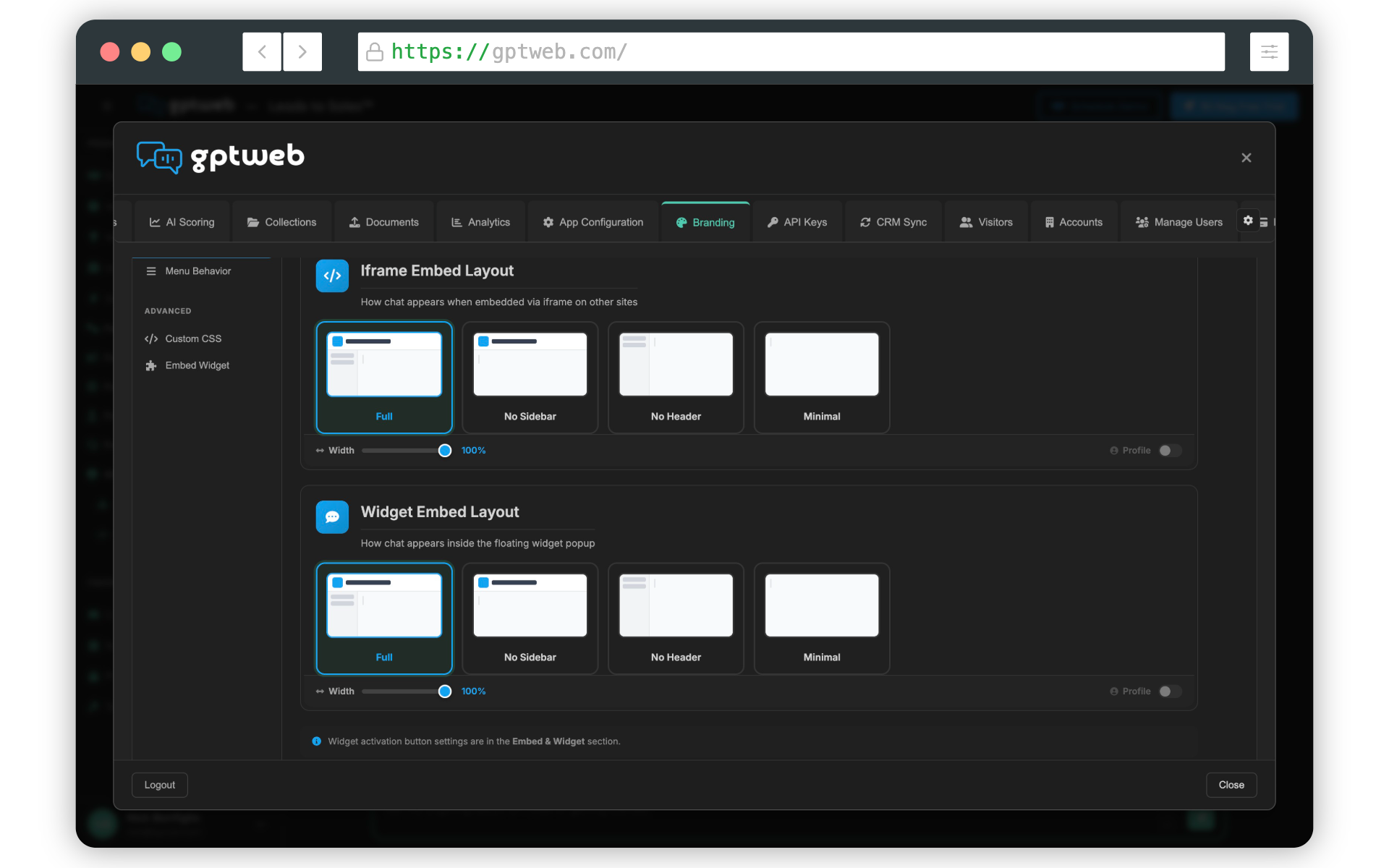
Embed Types at a Glance
| Embed Type | How It Works | Best For | Visitor Experience | Code Required |
|---|---|---|---|---|
| iFrame Embed | Renders full GPTWeb site inline inside a host webpage as an embedded panel | Dedicated chat pages, help centers, resource hubs, product pages | Full conversational UI inside the host page — no redirect or popup | One HTML snippet — copy and paste |
| Widget / Sidekick | Floating launcher button in page corner that expands into a chat panel overlay | Any page where ambient AI availability adds value without consuming space | Non-intrusive — click to open, click to close, chat persists across pages | One JS script tag — copy and paste |
| Standalone Custom Domain | Full GPTWeb experience hosted at gpt.yourdomain.com or chat.yourdomain.com | Primary sidekick deployment, partner portals, campaign landing pages | Full-page native GPTWeb experience with your branded domain in the address bar | DNS CNAME record — no code changes |
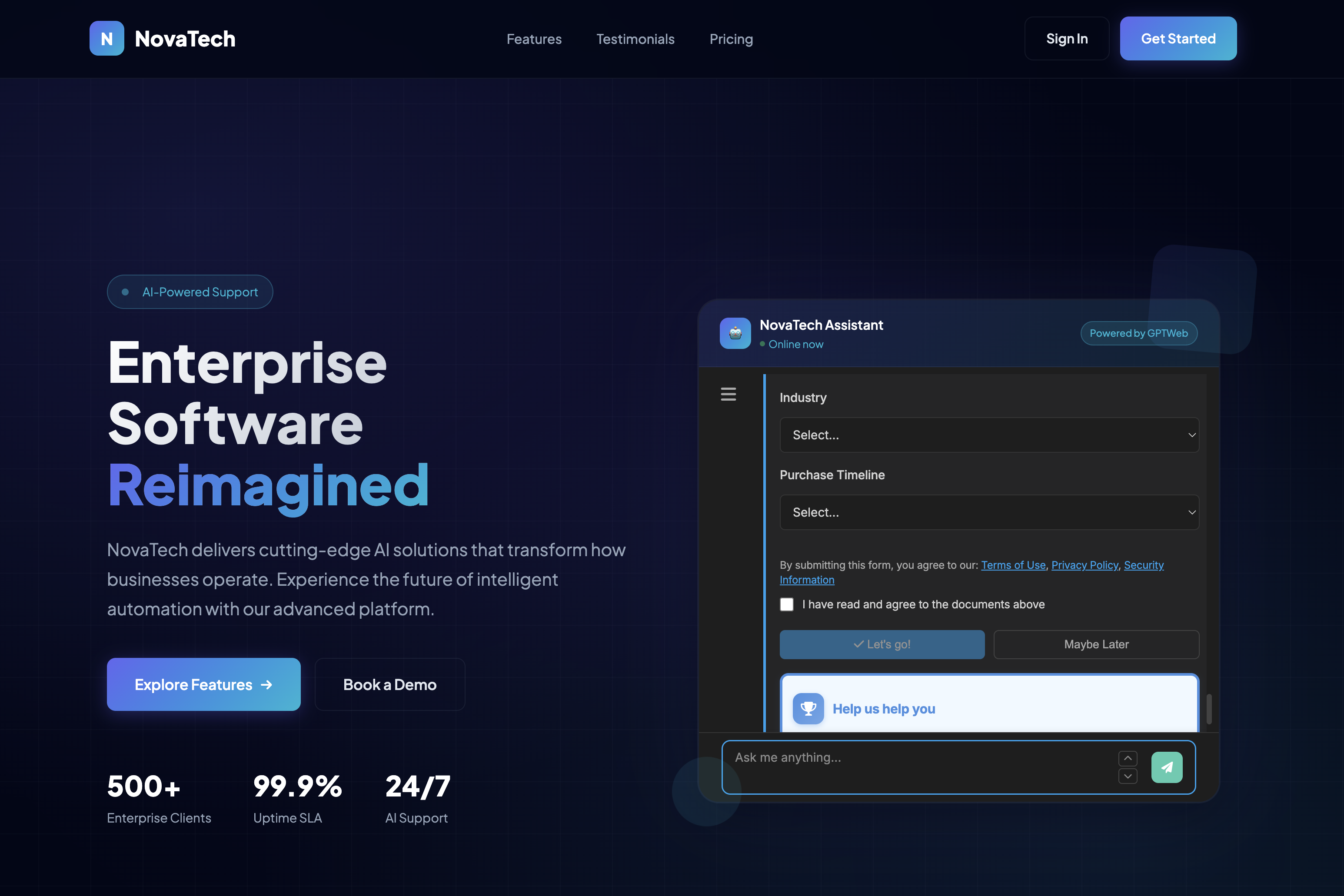
Where to Configure Embed Settings
| Setting | Admin Panel Location | What You Configure |
|---|---|---|
| Enable / Disable Embed | Branding → Customize → Embed & Widget | Toggle embed availability on or off globally |
| Widget Button Appearance | Branding → Customize → Embed & Widget | Button color, icon, position (bottom-left or bottom-right), and size |
| Allowed Domains | Branding → Customize → Embed & Widget | Whitelist domains permitted to embed your GPTWeb site — blank means unrestricted |
| iFrame Code Snippet | Branding → Customize → Embed & Widget | Copy-paste ready HTML iframe snippet pointing to your GPTWeb site URL |
| Widget Script Snippet | Branding → Customize → Embed & Widget | Copy-paste JavaScript tag for deploying the floating widget on any page |
| Custom CSS | Branding → Customize → Custom CSS | Override embed UI styling to match your host site brand exactly |
| GTM / Analytics | App Configuration → GTM Config tab | Google Tag Manager and analytics tracking across embedded experiences |
| Custom Domain | Branding → Custom Domain | Configure gpt.yourdomain.com with CNAME DNS records and SSL auto-provisioning |
Step-by-Step Setup Guide
| # | Step | Why | Where |
|---|---|---|---|
| 1 | Open Admin Panel — Mac: Cmd+Ctrl+A / Windows: Ctrl+Alt+A | All embed and widget configuration lives inside the admin panel | Keyboard shortcut on your live GPTWeb site |
| 2 | Navigate to the Branding tab | Branding houses all visual, embed, and domain customization | Admin Panel → Branding tab |
| 3 | Click the Customize sub-tab | Sub-tab organizes branding into colors, CSS, and embed sections | Admin Panel → Branding → Customize sub-tab |
| 4 | Select Embed & Widget from the left sidebar | This is the dedicated embed configuration panel for all embed options | Branding → Customize → Embed & Widget sidebar item |
| 5 | Toggle Embed to Enabled | Embed is disabled by default — nothing deploys until explicitly enabled | Embed & Widget → Enable toggle |
| 6 | Choose your embed type: iFrame or Widget | Determines whether GPTWeb appears inline or as a floating button | Embed & Widget → Embed Type selector |
| 7 | Configure widget appearance if using Widget mode | Set button color, corner position, and icon to match your brand | Embed & Widget → Widget appearance settings panel |
| 8 | Add allowed domains (strongly recommended) | Prevents unauthorized sites from embedding your GPTWeb experience | Embed & Widget → Allowed Domains field — one domain per line |
| 9 | Copy the generated code snippet | The exact HTML or JS code you need — pre-configured for your tenant | Embed & Widget → Copy Snippet button |
| 10 | Paste snippet into your target webpage HTML | Deploys GPTWeb on your host site — no rebuild or redeployment needed | Your site HTML, CMS template, or Google Tag Manager |
| 11 | Test in browser — hard refresh if embed does not appear | Confirms the embed loads and domain whitelist is configured correctly | Your live host website — use Cmd+Shift+R or Ctrl+Shift+R to hard refresh |
Embed Deployment Architecture
Key Technical Details
| Topic | Detail |
|---|---|
| iFrame src URL | https://app.gptweb.com/site/YOUR-SLUG — replace YOUR-SLUG with your tenant identifier |
| Widget script placement | Place the widget JS tag before the closing body tag on any page |
| Framer compatibility | Yes — use window.parent.postMessage to trigger GPTWeb actions from Framer button code |
| Action links in embeds | gptweb:// links work inside embeds (e.g., [{{action.demo_label}}](gptweb://modal/demo)) |
| Domain whitelisting behavior | If domains are listed, only those domains can render the embed — leave blank for unrestricted |
| Custom domain DNS | Add SSL verification CNAME and routing CNAME — SSL auto-provisioned in 5-60 minutes |
| Cache and preview issues | If embed preview is not loading, clear browser cache and verify domain is in allowed list |
| Styling the embed | Custom CSS at Branding → Customize → Custom CSS — use !important for style overrides |
| Chat placeholder text | Configured in Welcome Message tab → Chat Input Placeholder field (not via CSS) |
2 + Custom Domain
Embed Types
~10 Minutes
Setup Time
Copy & Paste Only
Code Required
Any HTML Host
CMS Compatibility
For more on sidekick deployment and conversational visitor engagement, explore Embedding & Sidekick, Live Visitor View to track embedded visitor activity in real time, and What are DQLs™? to understand how every embedded conversation generates qualified lead signals. GPTWeb is the future of engagement — websites and marketing automation combined, built for the AI era, built for now.