
Knowledge Base
Your Three-Step Activation Path!
Perfect! Let's tackle all three steps in sequence — branding first, then your first AI Campaign or Agent, then embedding GPTWeb into https://www.your organization.com. Here's exactly how to execute each one for your organization.
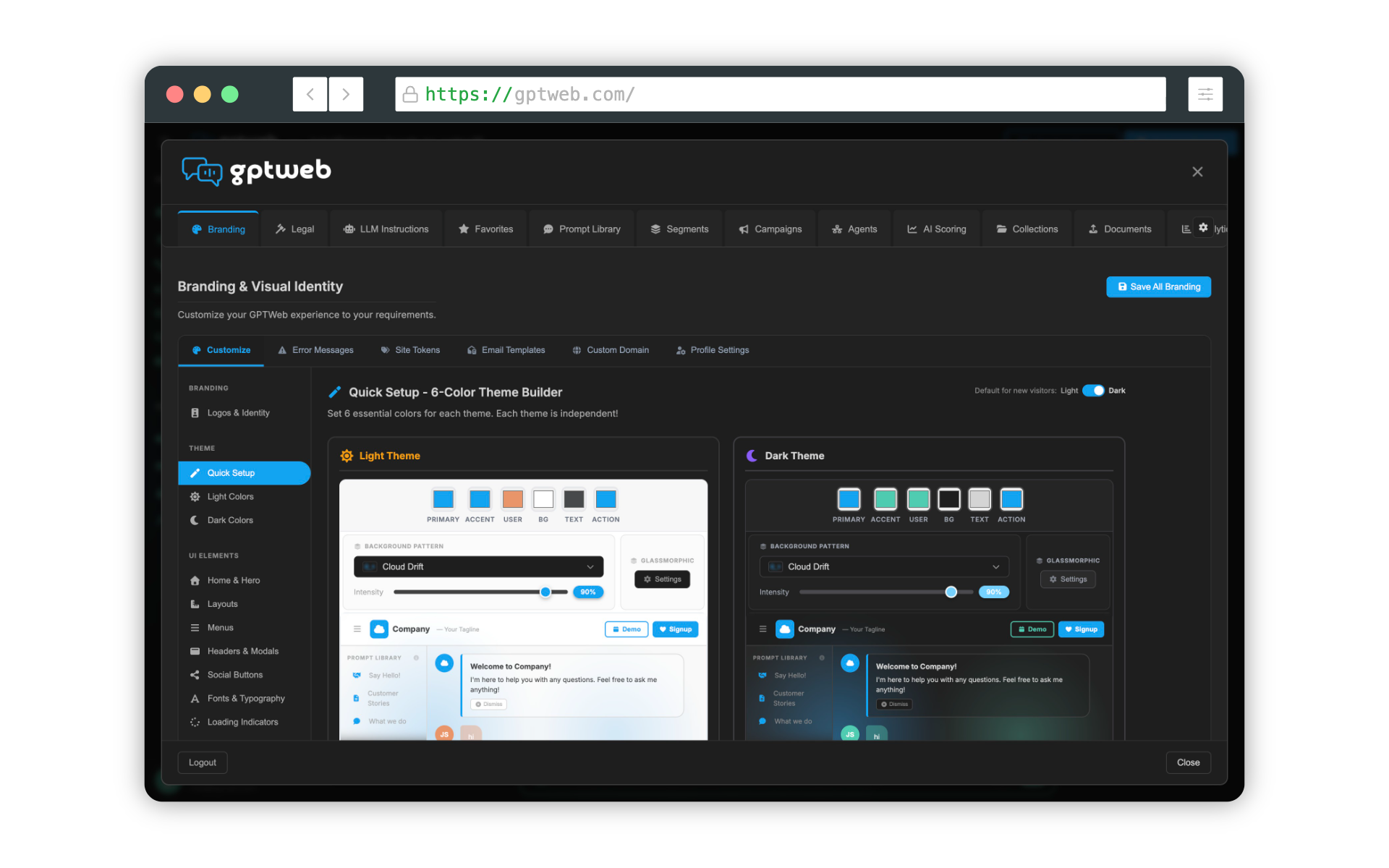
Step 1: Apply your organization Branding via Quick Setup
your organization Branding Quick Setup
| Step | Action | Details |
|---|---|---|
| 1 | Navigate to Branding | App Configuration → Branding |
| 2 | Open Quick Setup | Click the Quick Setup tab |
| 3 | Upload {{visitor.company}} Logo | Add your logo for both light and dark themes |
| 4 | Set Brand Colors | Primary, secondary, accent — apply {{visitor.company}}'s palette |
| 5 | Choose Layout | Left Nav, Top Nav, or Hero style |
| 6 | Pick Background Pattern | Animated patterns layered over panel color (optional) |
| 7 | Save & Preview | Live preview updates instantly |
Step 2: Build Your First AI Campaign or Agent
Campaign vs. Agent — Pick Your First
| Type | What It Does | Best Use |
|---|---|---|
| AI Campaign | Targeted modal, toaster, in-chat, or chat-bubble messaging | Promote offers, capture leads, drive webinar signups |
| AI Agent (NLP) | Natural-language built automation | Auto follow-up emails, CRM sync, lead escalation, profile enrichment |
| Best for {{visitor.company}} Launch | Start with an AI Campaign | Engage first visitors with a welcome offer or qualifying question |
Recommended first build for your organization: A simple AI Campaign with a welcome offer or a profiling question ("What brings you to your organization today?"). This kicks off Discussion Qualified Lead capture from day one. Configure it under Campaigns → New Campaign, target Anonymous visitors, and set the goal to either Show Form or Execute Prompt depending on your CTA.
Step 3: Embed GPTWeb into https://www.your organization.com
GPTWeb Embed Options for your organization
| Embed Type | How It Looks | Best For |
|---|---|---|
| iframe | Full-page or section embed | High immersion, dedicated AI experience |
| Widget | Chat bubble in corner | Lightweight overlay alongside existing site |
| Flyout | Slide-in panel triggered by visitor | Best of both — keeps existing site, adds conversational AI |
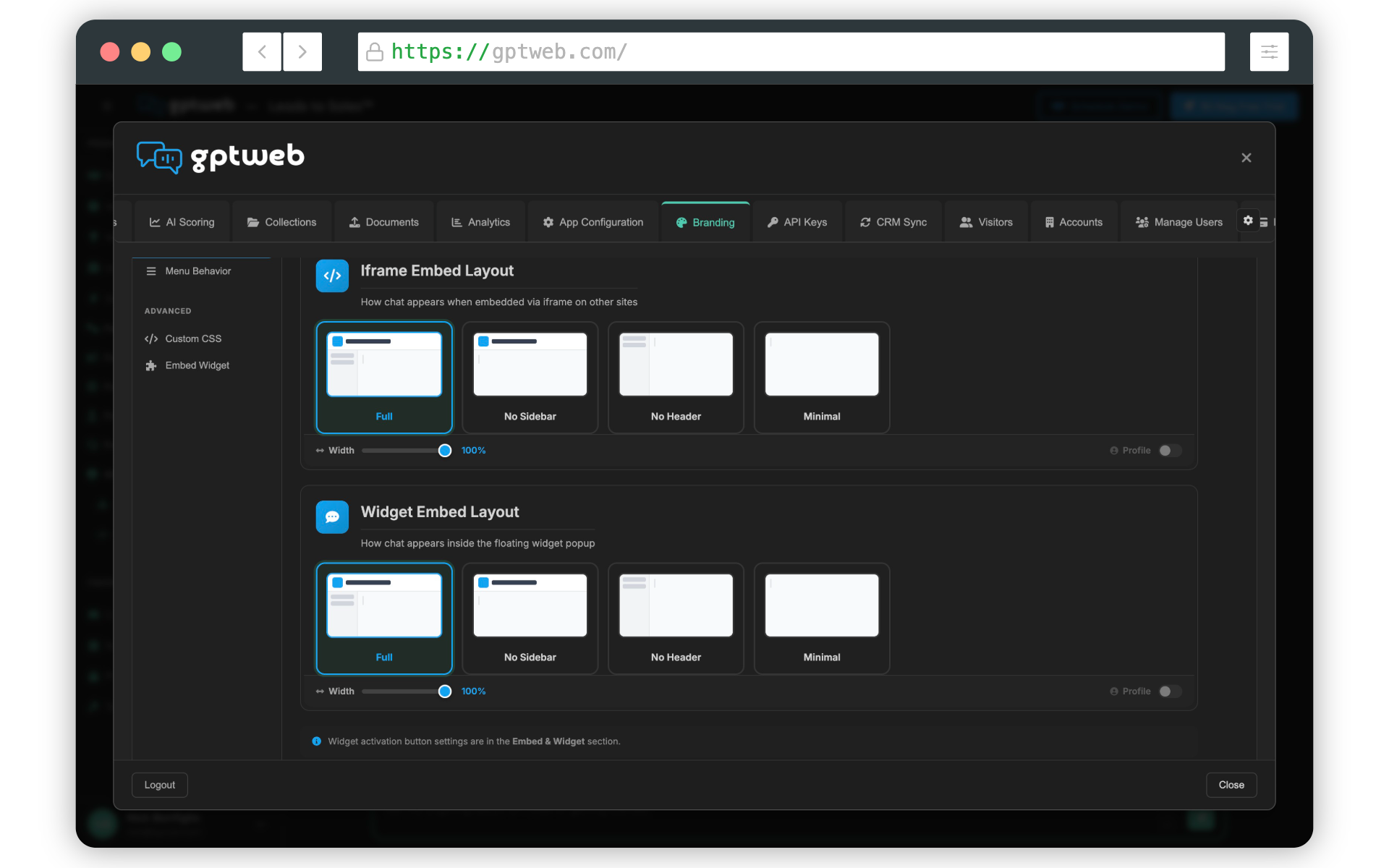
To embed, navigate to App Configuration → Embed in your GPTWeb admin. Copy the iframe or widget snippet, then paste it into the HTML of https://www.your organization.com (typically in your site's
<body> or footer template). All three embed styles — iframe, widget, and flyout — deliver full DQL™ capture, AI scoring, and CRM sync even when embedded.15 min
Branding Setup
30 min
First Campaign
10 min
Embed Install
< 1 hour
Total Launch Time
Need a deeper dive on any step? Just ask, — I can walk you through branding details, campaign targeting logic, agent NLP setup, or embed code specifics. You can also explore Getting Started, Use Cases, or [](gptweb://modal/demo) for hands-on launch support. Email sales@gptweb.com anytime.
GPTWeb is the future of engagement, websites, and marketing automation combined — built for the AI era, built for now.